
Member Management
LoginBox supports team collaboration. The account used to register the app is the administrator account. The administrator has full permissions and can create accounts for each team member, with permissions set individually.
Add Members
In the Team Members section of the left menu, you can manage team members (as shown).
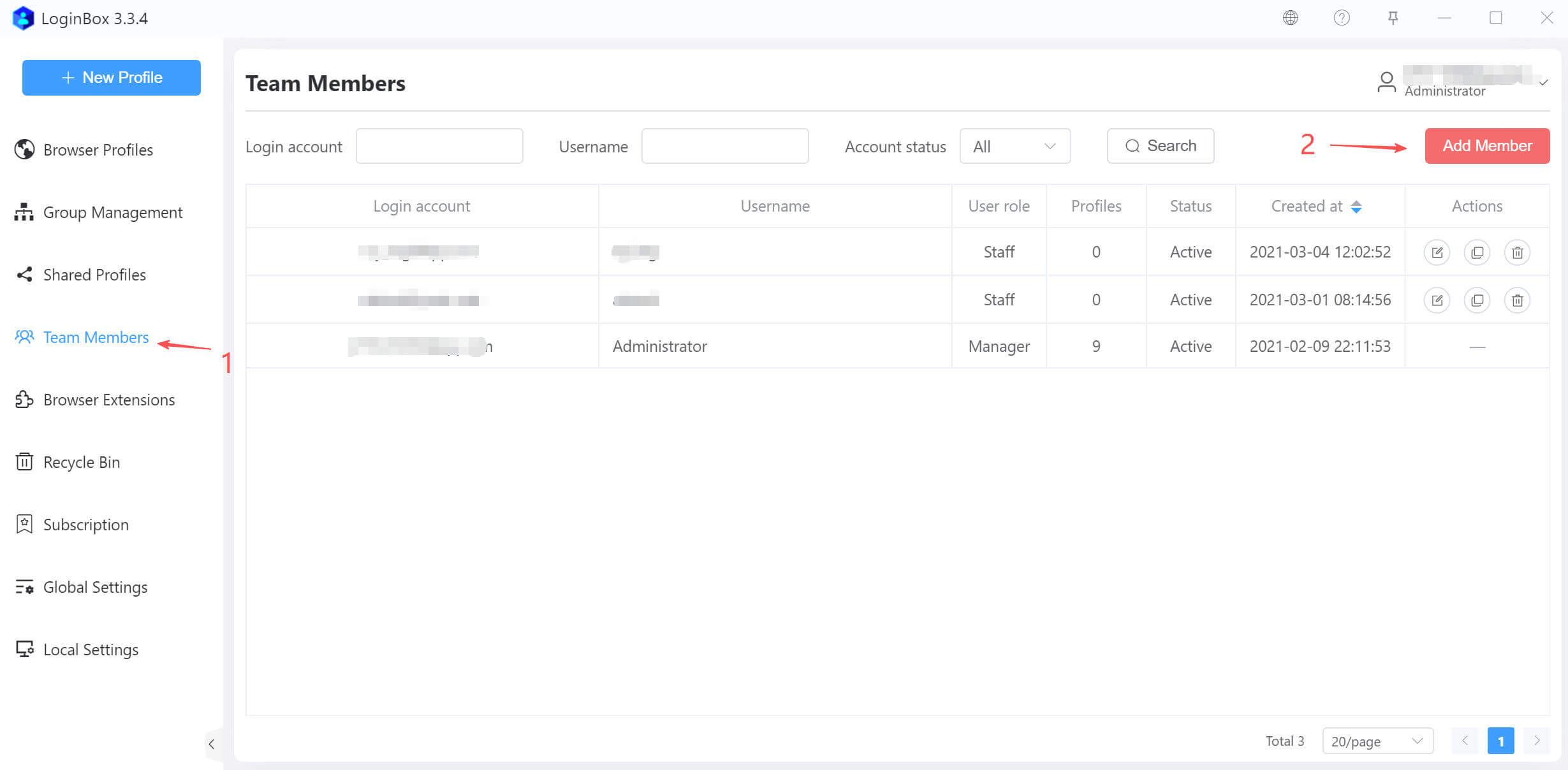
Click the Add Member button to go to the Add Member page (as shown).
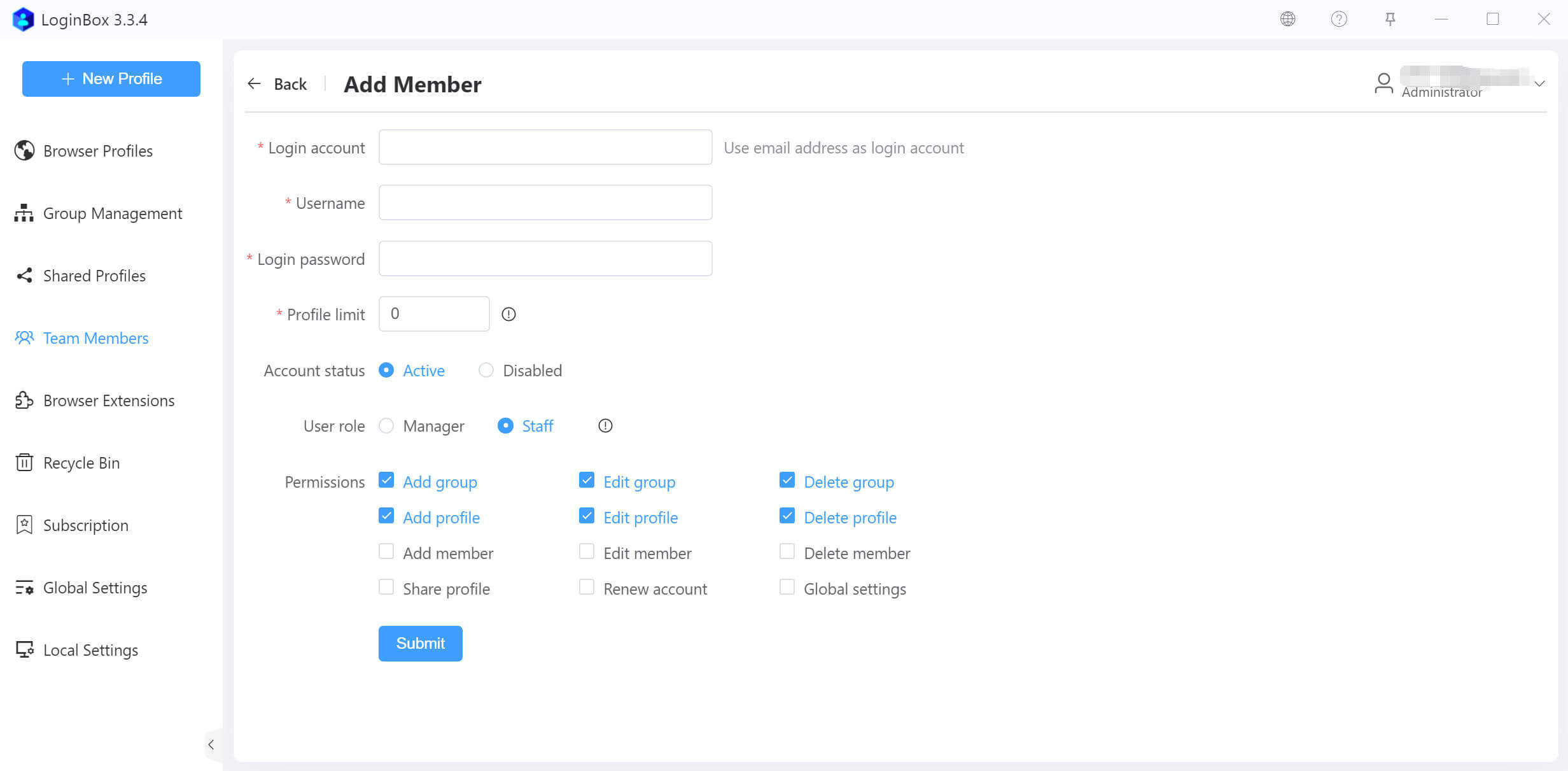
Login account:
Members use their email address as the login. Sign-in may require an email verification code (OTP). If a user forgets the password, they can reset it via email verification.
Profile limit:
The maximum number of profiles allowed to be created by this member. 0 for no limit. Note: The total profiles created by all members cannot exceed your team's purchased limit.
User role:
Two user roles are available.
1. Manager: Accounts with the Manager role can view the entire team’s browser configuration data and group data. The administrator account is a Manager and its role cannot be changed..
2. Staff: Accounts with the Employee role can only view their own browser configuration data and group data.
Permissions:
You can assign specific permissions to members as needed.
Copy Member Account
You can copy an existing member account to quickly add a new account with the same role and permissions (as shown).
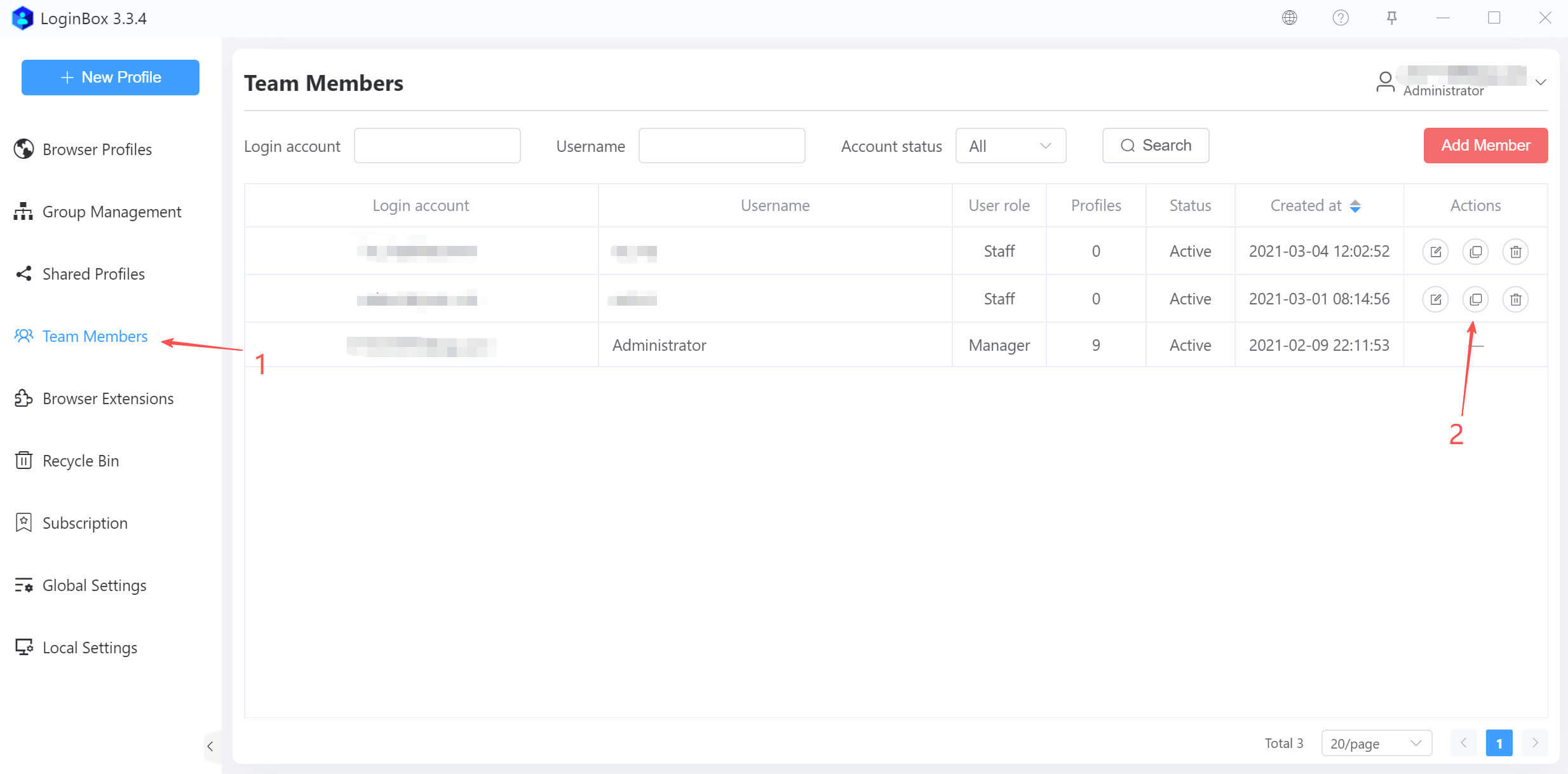
You can also edit, delete, or disable member accounts within the app.