
Data Synchronization
By enabling Browser Data Sync, your local browser data (bookmarks, browsing history, form-fill data, saved passwords, cookies, and other site data) is uploaded to the server. When you open the browser window for this profile on a new computer, LoginBox will automatically download the cloud data to that device.
Typical use cases
1. Website sign‑in status can be synced across devices, so you won’t need to log in again on a new computer (works for most sites).
2. Protect website login passwords. Imagine a team managing many website accounts—when someone leaves, changing every password they touched can be a nightmare. With LoginBox, an admin creates a browser environment, signs in to the required sites once, and then assigns that profile to other members. The assignees can access the sites without needing the account passwords, because the signed‑in sessions (cookies/site data) travel with the profile.
Enable Browser Data Sync
In Global Settings (left menu), you can configure the Browser Data Sync feature (as shown).
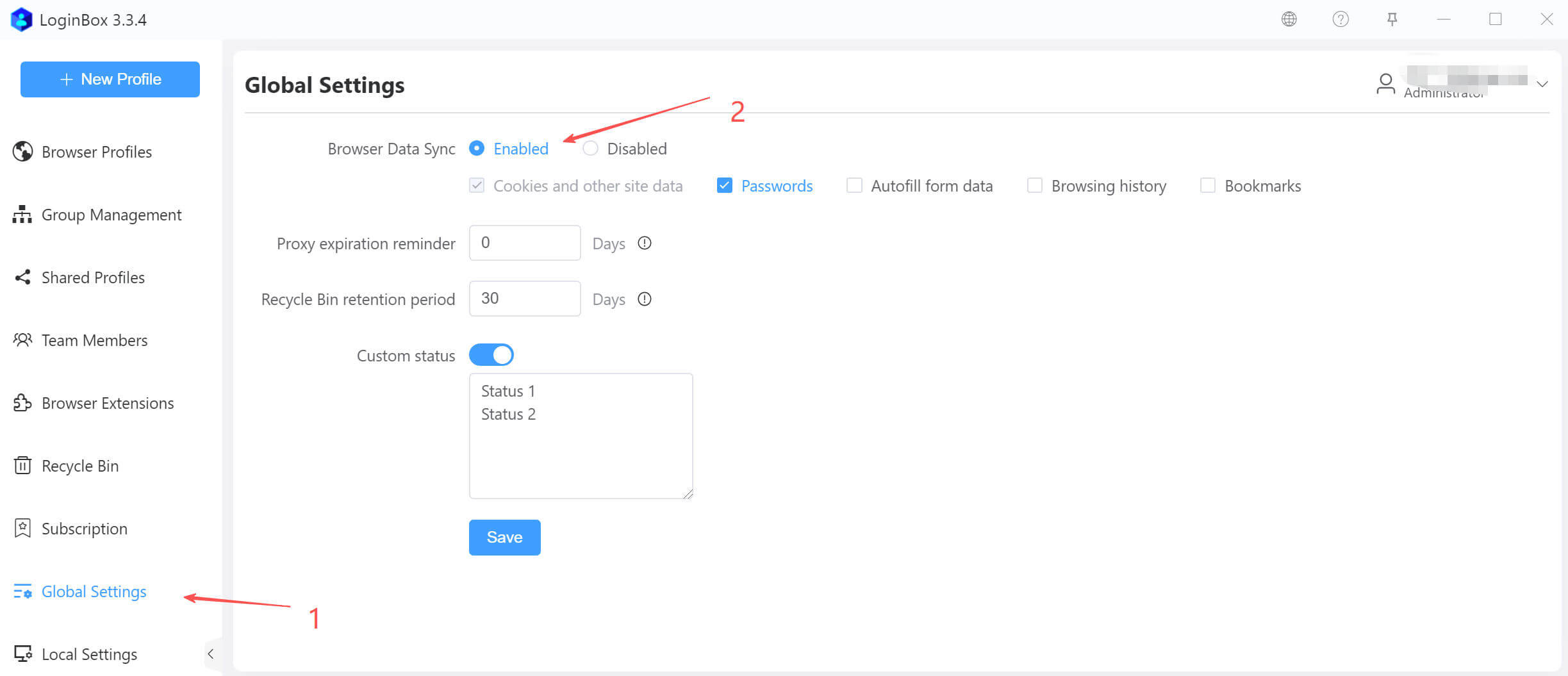
Once Browser Data Sync is enabled, the app automatically uploads your browser data when you close the browser. The next time you start the browser on another device, it first downloads the data from the cloud, then opens the browser.
Once Browser Data Sync is enabled, your existing local browser data will be uploaded the next time you close the browser.
You can view browser data sync records in the app (as shown).
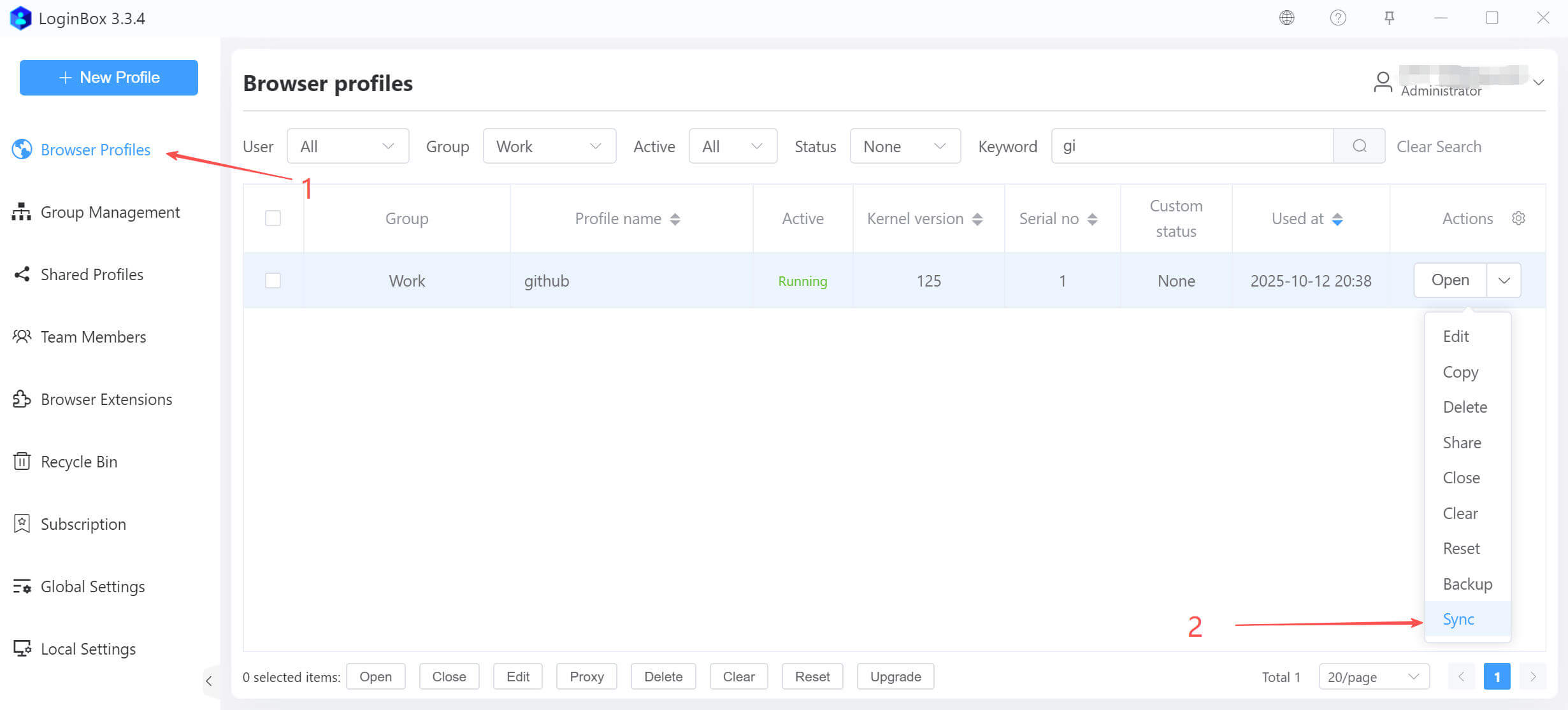
Click the Sync button to open the dialog (as shown).
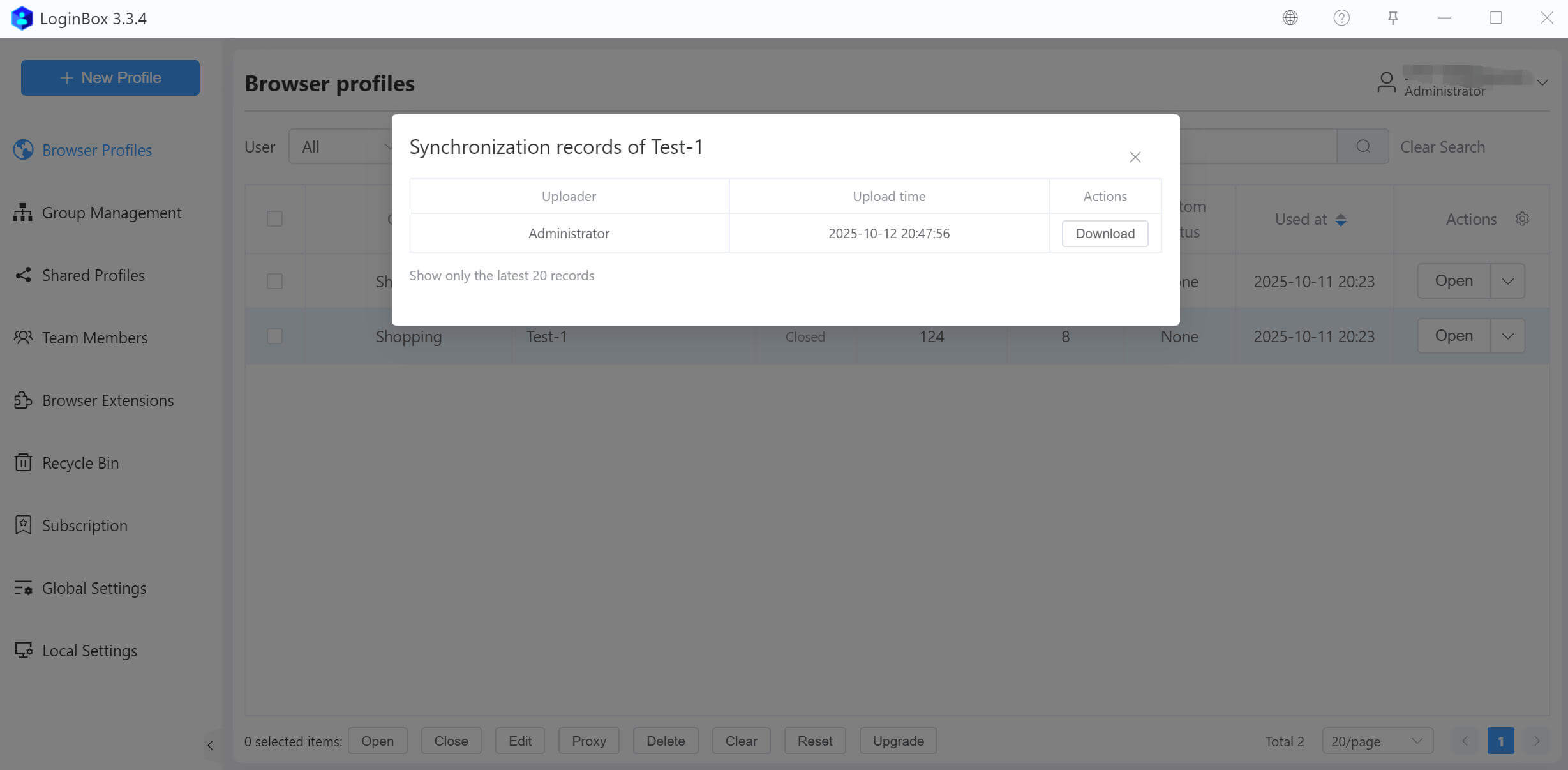
You can download and restore historical data from the Sync History. Click the Download button to fetch the corresponding data to this device.