Delete Browser Profiles
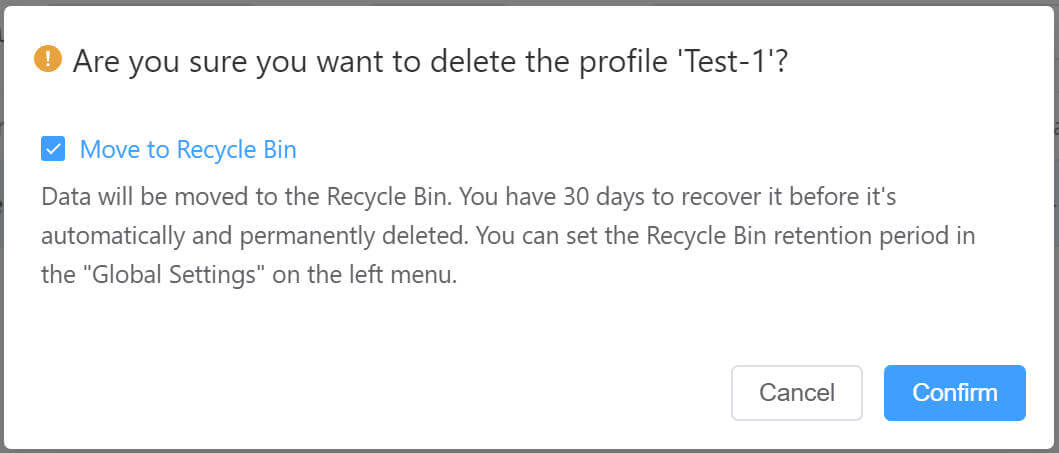
You can delete profiles you no longer need. To prevent accidental deletion, files are moved to the Recycle Bin by default. When a profile is moved to the Recycle Bin, its associated browser data (browsing history, bookmarks, saved passwords, form-fill data, cookies, and other site data) is not deleted. Items in the Recycle Bin are kept for 30 days by default and then deleted automatically. You can change the default retention period in Global Settings on the left menu.
Open the Recycle Bin from the left-hand menu to review items, restore specific profiles, or permanently delete them.
Do not move the profile to the Recycle Bin; permanently delete it instead. The software will completely remove the profile and its associated browser data (browsing history, bookmarks, saved passwords, form-fill data, cookies, and other site data). This action cannot be undone.
Delete a single profile
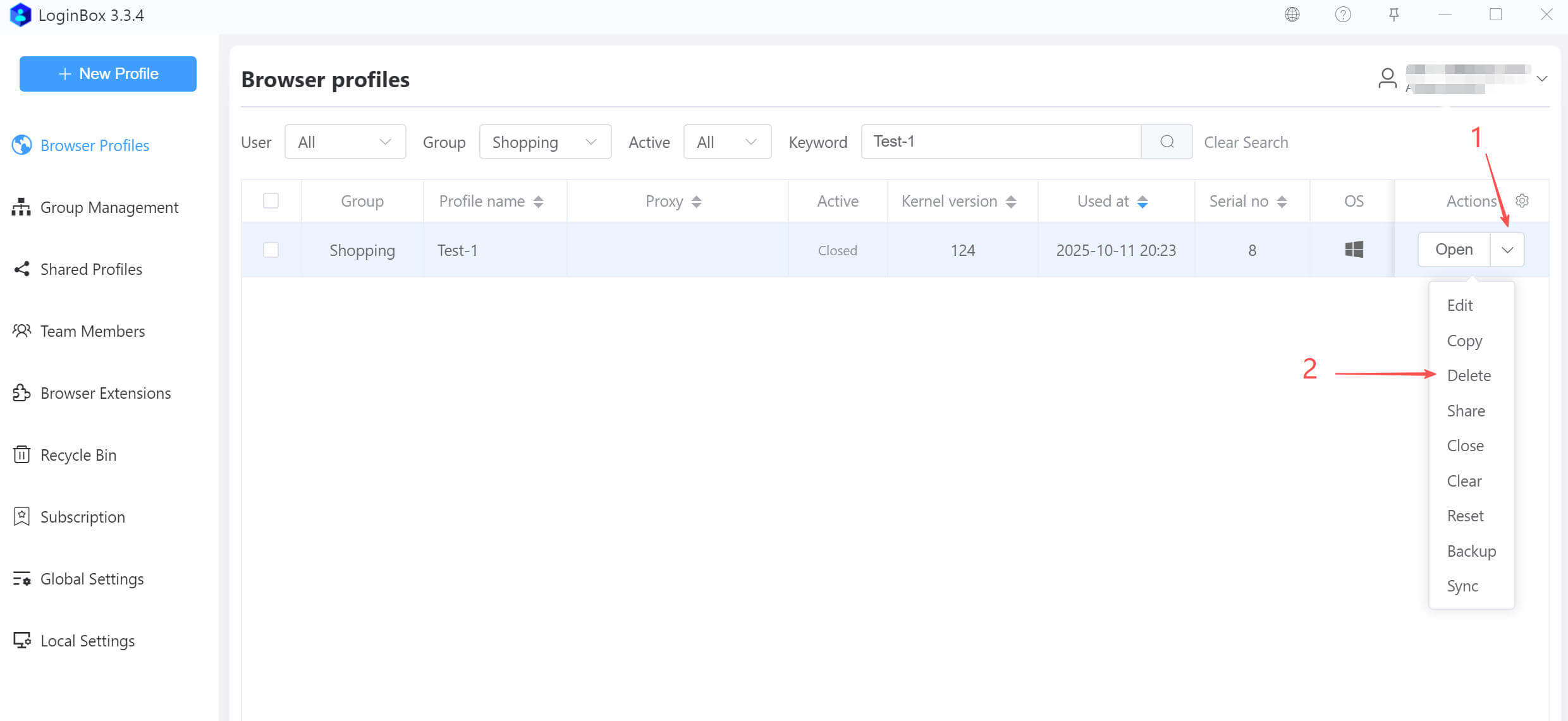
As shown above: Expand the dropdown to the right of the target profile, then click “Delete” in the menu.
o prevent accidental operations, a confirmation dialog will pop up when you delete.
Bulk delete profiles
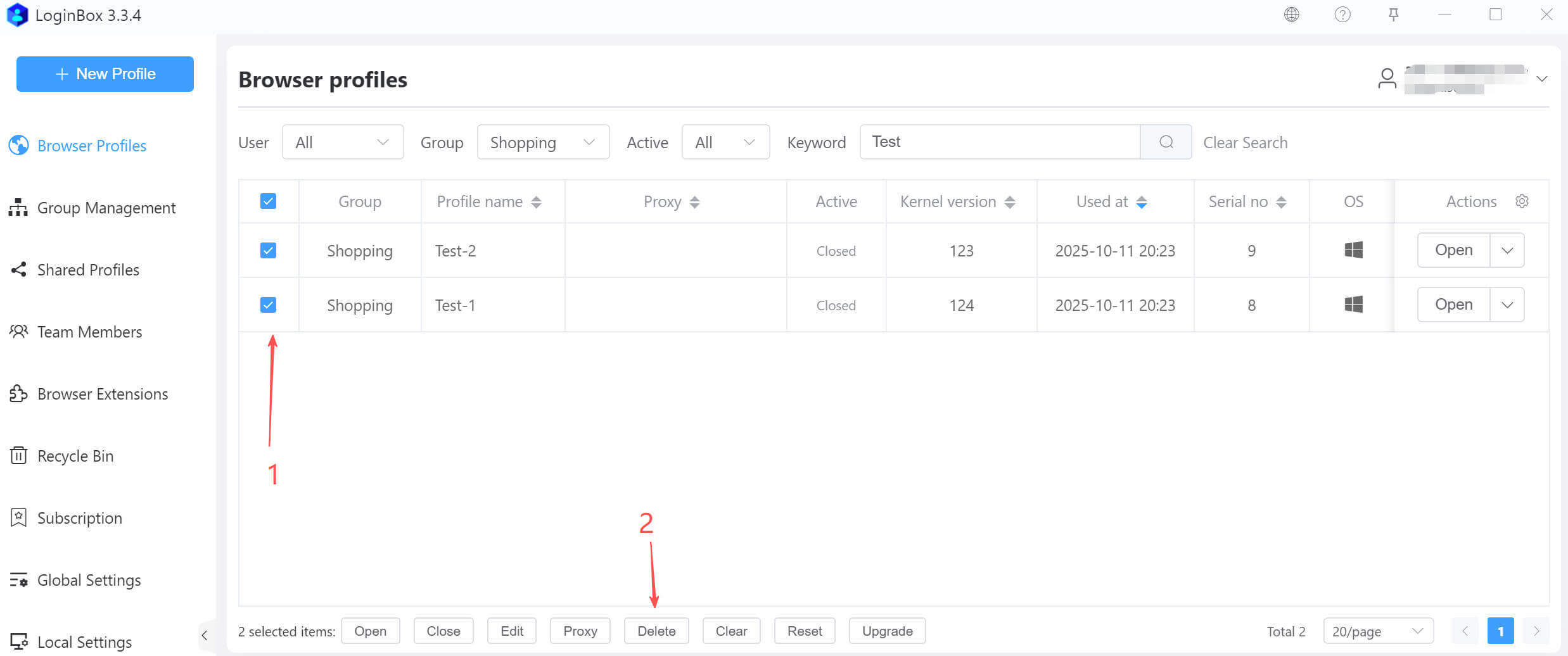
You can select multiple profiles to delete, then click the Delete button at the bottom to remove all selected profiles in bulk.